
Purpose
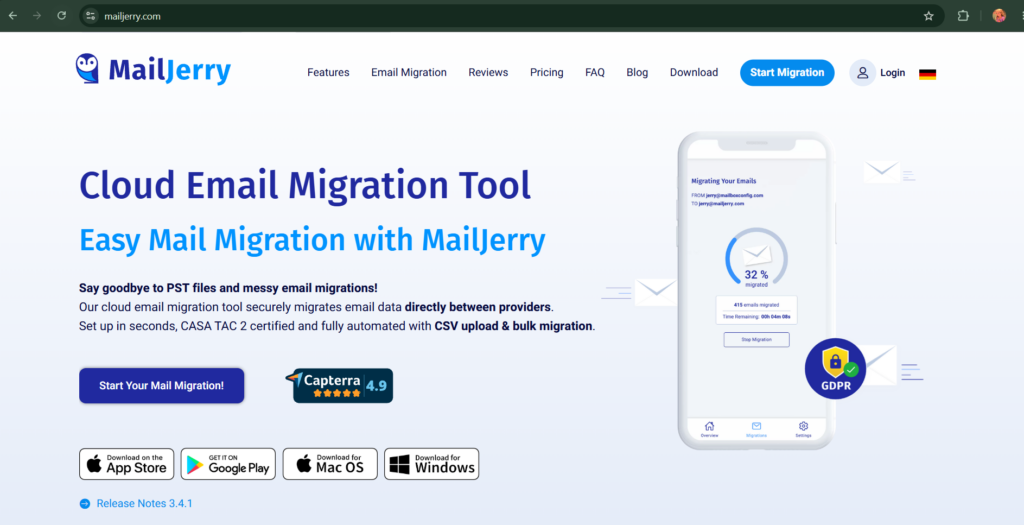
Migrate email accounts and emails from one hosting server to another hosting server using MailJerry (Paid Version) through direct server-to-server migration without creating backups.
Tool Used
- MailJerry (Paid Version) – Download tool and install in system
Migration Workflow
Step 1: Collect Old Hosting Mail Details
Gather the following information from the source hosting:
- Email Address
- Email Password
- IMAP Hostname
- IMAP Port
- SSL/TLS Status
- Number of Mailboxes
- Mailbox Size (if required)
Example:
| Email Address | Password | IMAP Host |
|---|---|---|
| [email protected] | ****** | mail.olddomain.com |
Step 2: Create Email Accounts on New Hosting
Before using MailJerry, all destination mailboxes must be created on the new hosting server.
Required Actions
- Login to the new hosting control panel.
- Open Email Accounts section.
- Create all email accounts with the same email addresses.
- Set temporary passwords.
- Verify that mailbox login is working.
- Note the following details:
| Email Address | Password | IMAP Host |
| [email protected] | ****** | mail.newdomain.com |
Important
MailJerry cannot migrate emails into mailboxes that do not already exist on the destination server.
Step 3: Login to MailJerry
- Open MailJerry Dashboard.
- Login with admin credentials.
Step 4: Configure Source and Destination Servers
Source Server
- IMAP Host
- IMAP Port
- SSL/TLS
Destination Server
- IMAP Host
- IMAP Port
- SSL/TLS
Verify both connections successfully.
Step 5: Add Mailbox Migration Details
For each mailbox provide:
- Source Email Address
- Source Password
- Destination Email Address
- Destination Password
MailJerry uses these credentials to connect to both servers.
Step 6: Start Migration
- Review all mailboxes.
- Start migration.
- Monitor progress from the dashboard.
Step 7: Verify Migration
Check:
- Inbox
- Sent Items
- Drafts
- Trash
- Custom Folders
Compare email counts between old and new servers.
Step 8: DNS / MX Record Update
After successful verification:
- Update MX records to the new mail server.
- Wait for DNS propagation.
- Test sending and receiving emails.
Step 9: Final Validation
- Send test email from external account.
- Receive test email.
- Confirm all mailboxes are functioning correctly.
- Obtain client approval.
Common Issues
Authentication Error
- Incorrect mailbox password.
- IMAP disabled.
Destination Mailbox Not Found
- Mailbox not created on new hosting.
- Incorrect email address entered.
Connection Failed
- Incorrect hostname.
- Firewall restrictions.
- Wrong IMAP port.
Migration Checklist
☐ Old hosting mail details collected
☐ New hosting mailboxes created
☐ Destination passwords documented
☐ MailJerry project configured
☐ Migration completed
☐ Emails verified
☐ MX records updated
☐ Client confirmation received
Updated By: Alice